808Fubo logo

article // feed

808Fubo on Chromebook: Watching Through Android Apps and Browsers

Learn how to watch 808Fubo on a Chromebook using its Android app support, what to do on models without it, and tips for students and shared computers.

By 808Fubo Team

Introduction

Chromebooks are everywhere in classrooms and homes, and many support Android apps directly. That makes them a natural extra screen for 808Fubo APK, especially for students and families sharing devices.

This guide covers the Android app route on Chromebooks, the alternatives for older models, and sensible habits for shared machines.
Chromebooks That Run Android Apps

Most Chromebooks made in recent years run Android apps through the Google Play Store built into ChromeOS. If your Chromebook has it, installation feels like using a tablet.

Enable the Play Store in ChromeOS settings if it is not already on, then install and sign in as normal.

Storage and performance expectations mirror our system requirements guide.

  • Play Store built into ChromeOS
  • Tablet style installation
  • Works with touch or trackpad
  • Updates arrive through the Play Store

Installing 808Fubo on a Chromebook

Where sideloading is required, developer settings differ by model, and school managed Chromebooks usually block it entirely. On a personal Chromebook, follow the same download steps as any Android device.

If your Chromebook is managed by a school or employer, respect that management. Use your own phone or TV instead.

  • Personal Chromebooks only for sideloading
  • Managed devices usually block installs
  • Keep ChromeOS updated
  • Restart after first install if the app is not listed

Browser Viewing and Casting Alternatives

On models without Android support, the practical route is your phone plus casting. Start the stream on the phone and cast it to a television or a Chromecast connected display.

A Chromebook also makes a good second screen for fixtures, scores and channel browsing while the match plays on the TV.

  • Cast from your phone to the big screen
  • Use the Chromebook as a companion screen
  • Keep fixtures open in a tab
  • Connect headphones for shared rooms

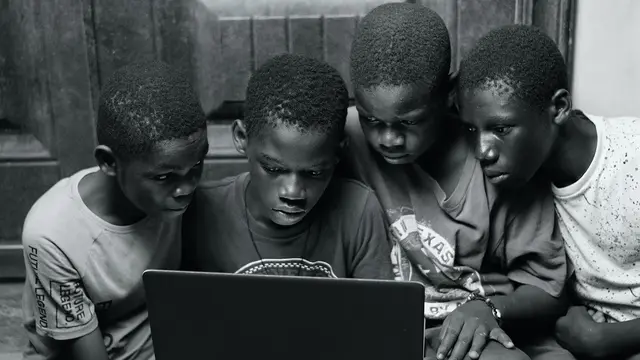
Students and Shared Devices

On shared machines, sign out of personal accounts when you finish, and avoid saving passwords in the browser for streaming services.

Headphones and the smaller screen make a Chromebook ideal for watching in shared spaces without taking over the family television.

For the dedicated big screen setup, see our Smart TV guide.

  • Sign out on shared devices
  • Avoid saving passwords publicly
  • Headphones in shared spaces
  • Respect school and work device policies

Performance Tips for Chromebooks

Close heavy tabs before streaming. Chromebooks share memory between the browser and Android apps, and a dozen tabs will starve the player.

Plug in during long matches. ChromeOS reduces performance on battery to stretch study time, which is not what you want at kickoff.

  • Close unused tabs
  • Plug in for live matches
  • Free up storage space
  • Keep ChromeOS on the stable channel

FAQ

No. Most recent personal Chromebooks run Android apps, but older models and school or work managed devices may block installation. Casting from your phone is the fallback.

Yes, for personal viewing. The screen is bigger than a phone, and with tabs closed and the charger plugged in, playback is smooth.

No. Managed devices are controlled by the school for a reason. Watch on your own phone, tablet or television instead.

Conclusion

A Chromebook will not replace the family TV, but as a personal and portable screen for 808Fubo it earns its place. Use the Android app where supported, cast where it is not, and keep shared device habits clean.

Download 808Fubo APK
Ryan Delgado

Reviewed by

Ryan Delgado

Live TV Streaming Reviewer

Ryan tests live TV and sports streaming apps on real Android devices, checking stream stability, channel loading and playback quality before any app is listed here.

More about Ryan Delgado